Print eBay shipping labels on thermal printers
A paper format that is too small can cut off parts of a shipping label. In the shipping run, open Print labels → Thermal printing with paper checks. Shipnovo displays the actual original formats and checks your paper selection. Saved labels stay in packing list order. Reprinting does not buy new labels or assign new pack numbers.
For existing accounts: Sign in and follow the steps.
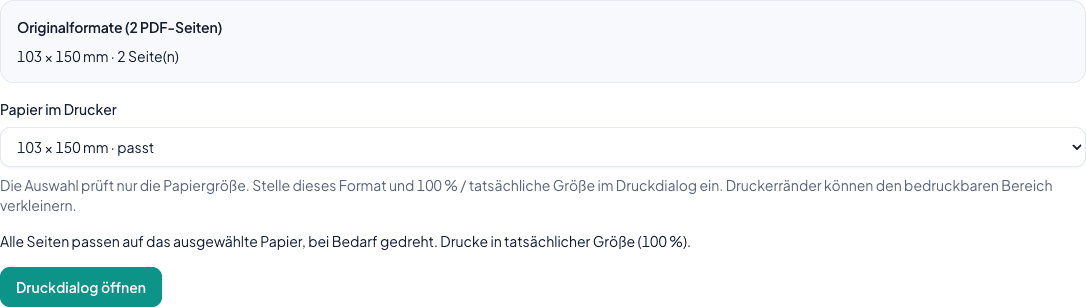
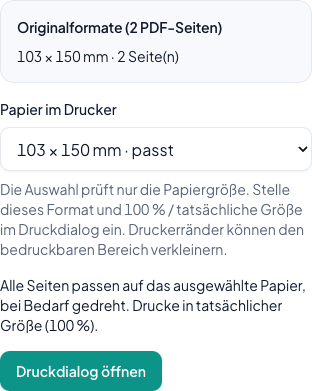
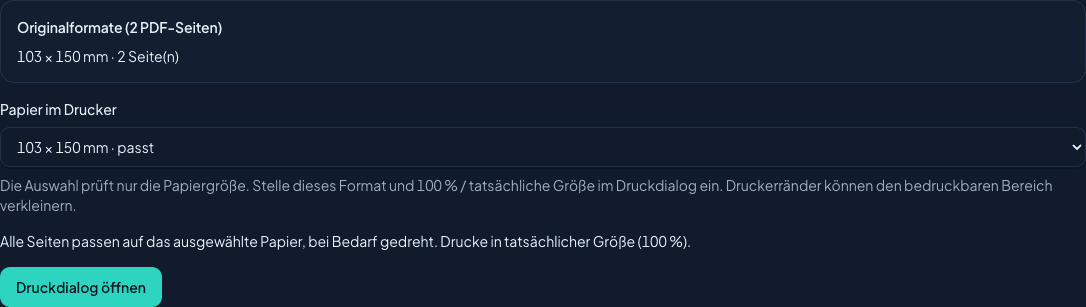
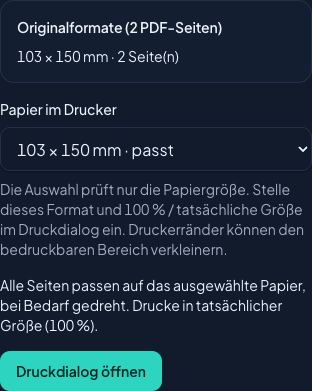
Original format and paper selection in the shipping run
App screenshot · example data
Step by step
- 1
Check shipping method and original format
Under Settings → Shipping methods, choose a format that matches your printer. For example, DHL offers 103 × 150 mm as a thermal format. The actual dimensions of the saved original PDF govern the printout, not a generic preset such as A6 or 100 × 150 mm.
- 2
Open Thermal printer in the saved run
Open Shipping runs and select the run with generated labels. Under Documents → Print labels, choose Thermal printing with paper checks. Print saved PDF opens the combined label file on the standard print page. Paper checks and part selection are in thermal printing.
- 3
Select a part when printing more than 50 labels
A run with 75 printable labels shows, for example, Part 1 of 2 for positions 1–50 and Part 2 of 2 for positions 51–75. These are fixed run positions, not PDF page numbers. Cancelled or excluded positions do not shift subsequent parts. A single original label can contain multiple PDF pages, which remain fully intact.
- 4
Select matching paper in the printer
Review the displayed original formats and choose the loaded paper under Paper in printer. Open print dialog becomes available only when the size matches. For mixed original formats, use paper that fits all pages at actual size, or print the PDF pages sequentially with the corresponding paper size while preserving the order.
- 5
Set print dialog and driver to actual size
Select Open print dialog and choose your printer. Set scaling to 100% or Actual size and select the matching paper format. Also verify the printable area in your printer driver: Shipnovo paper validation cannot detect your printer margins. Do not shrink or crop the label to fit undersized paper.
- 6
Check the first printout or open the PDF separately
Before printing the entire stack, check that the first label printed completely. If your browser does not support the print dialog here, use Download original PDF or Open PDF separately. For large runs, the download applies to the selected part. Verify the printout with your printer and scanner before using the label.
Common questions about this guide
No. The original PDF determines the required dimensions. For example, a DHL original measuring 103 × 150 mm does not fit unscaled onto 100 × 150 mm. Check original formats, loaded paper, and printable margins instead of choosing A6 by default.
No. Parts divide the fixed shipping run positions into ranges of 50. All pages of a multi-page original label are included. Therefore, the PDF for a part can contain more pages than labels.
Shipnovo displays all contained dimensions. Choose paper that fits every page at actual size. If your printer requires different rolls for this, open the original PDF and print the pages in the same order using the respective paper. The selection in Shipnovo does not alter the original dimensions.
Check scaling, paper format, and printer margins. Select 100% or Actual size and disable fit to page. Even when paper and original dimensions match, the driver might enforce a smaller printable area. Verify the first printout before printing additional labels.
Shipnovo provides the PDF and opens the browser print dialog when supported. The printer, operating system, and required drivers must be configured properly. Whether your printer and smartphone support printing depends on your setup. Verify the first printout for completeness and legibility.
No. Reprinting and downloading use the saved labels with the same pack numbers. They do not purchase new postage and do not consume additional label quota. If a purchase status is unclear, first check the existing carrier result in the run; do not initiate a new purchase for a presumed missing printout.
Explore related topics
Try Shipnovo with eBay
Free for 14 days. No payment details needed.