Open and print shipping labels on mobile
You are standing by the parcel and need to access your label and packing list on your phone. Open the saved shipping run in Shipnovo and download the existing PDFs. Whether your smartphone outputs these PDFs correctly to your printer depends on your device and print configuration. Verify one label at actual size first.
For existing accounts: Sign in and follow the steps.
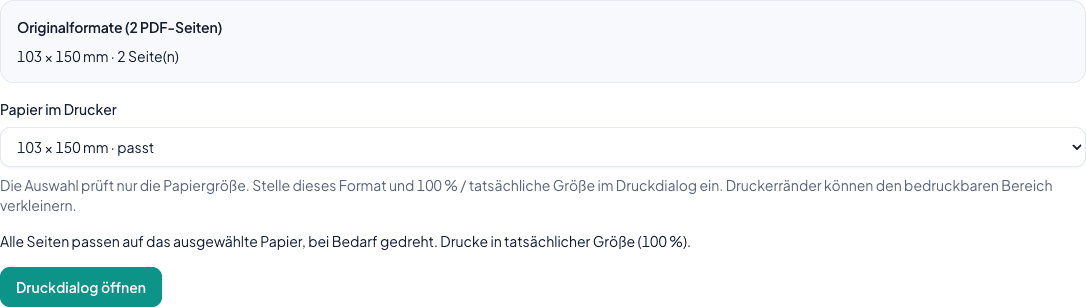
Original format and paper selection in the shipping run
App screenshot · example data
Step by step
- 1
Open the saved run on mobile
Sign in to Shipnovo in your mobile browser. Open Shipping runs and the run containing your generated labels. Verify that you have the matching run and correct eBay account in front of you. This method uses existing labels; a download does not purchase new postage.
- 2
Select Thermal printer and part if needed
In the run, choose Print labels → Thermal printing with paper checks. For more than 50 printable labels, open a displayed part first, such as Part 1 of 2 for positions 1–50. Parts follow fixed run positions. Multi-page originals stay complete. Check the original formats and Paper in printer before trying to print.
- 3
Download original PDF or open separately
Use Download original PDF or Open PDF separately. For a large run, you receive the selected part. If the embedded PDF view or Open print dialog does not work on mobile, use this separate PDF path. Get the combined label file under Documents → Download labels as PDF in the shipping run.
- 4
Open the packing list alongside
Return to the same shipping run. Under Documents → Packing list, choose Download packing list as PDF or View packing list in app. Compare the pack number on the label with the packing list position. Keep the run order across print parts.
- 5
Check the printout on your device
If your PDF app or browser offers a print function for your configured printer, select the matching paper and 100% or Actual size. Verify the first label completely and note printable margins. Then check legibility with your scanner before printing additional labels.
Common questions about this guide
Shipnovo provides the existing PDFs. You must test with your setup whether print dialogs, PDF apps, and printers work together on your iOS or Android device. Print one label first for verification.
On the Thermal printer page, use Open PDF separately or Download original PDF. For more than 50 printable labels, select a part first. Open the file in a PDF application on your device and verify all pages at original size there.
No. Download and reprint paths use saved labels, purchase no new postage, and preserve pack numbers. They consume no additional label quota. If a purchase status is unresolved, check the existing result in the run and use the designated restore flow; do not initiate a second purchase.
Yes. In the shipping run, open Documents → View packing list in app. This shows the packing list for this run in the browser. Viewing or downloading a PDF does not confirm packing or shipping.
Explore related topics
Try Shipnovo with eBay
Free for 14 days. No payment details needed.