Create shipping rules by weight, country, and product
Instead of assigning a shipping method to each order yourself, create rules. A rule checks conditions such as weight or country and then assigns a shipping method. Rules never buy labels; that happens later in a shipping run.
For existing accounts: Sign in and follow the steps.
Step by step
- 1
Open rules
Go to Settings → Rules. Under Shipping rules, you can see all rules in priority order.
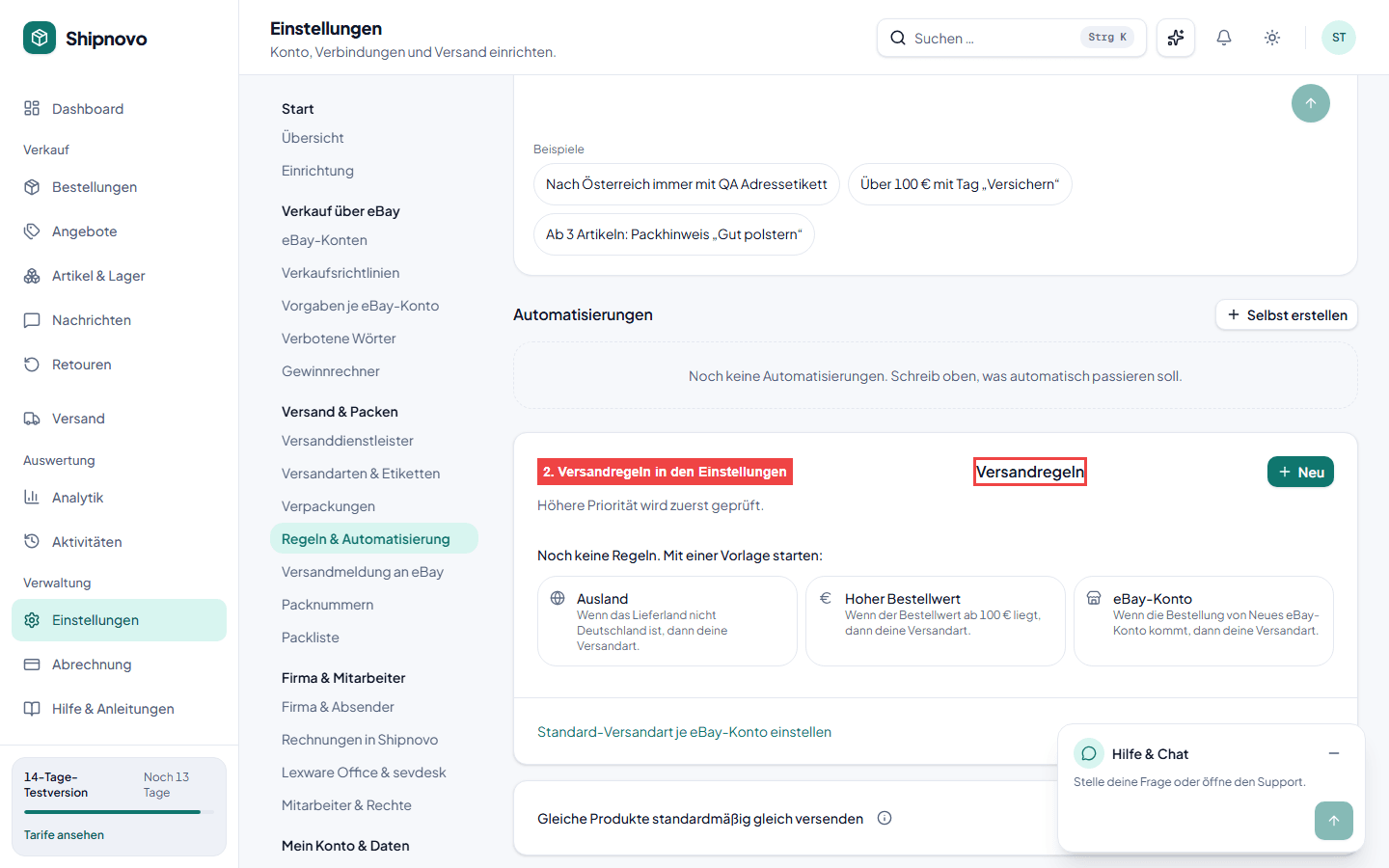
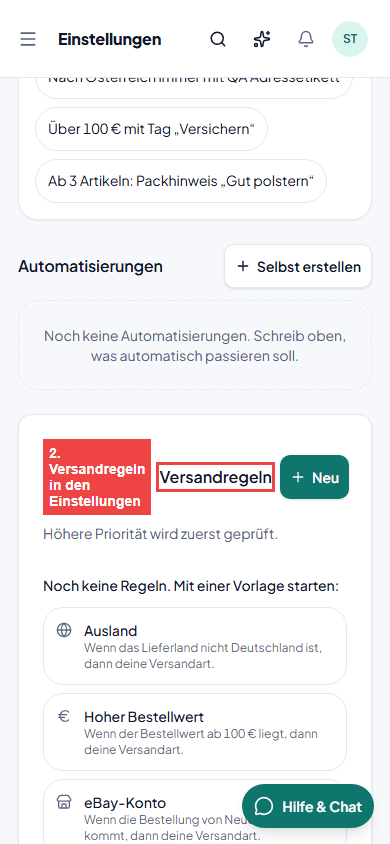
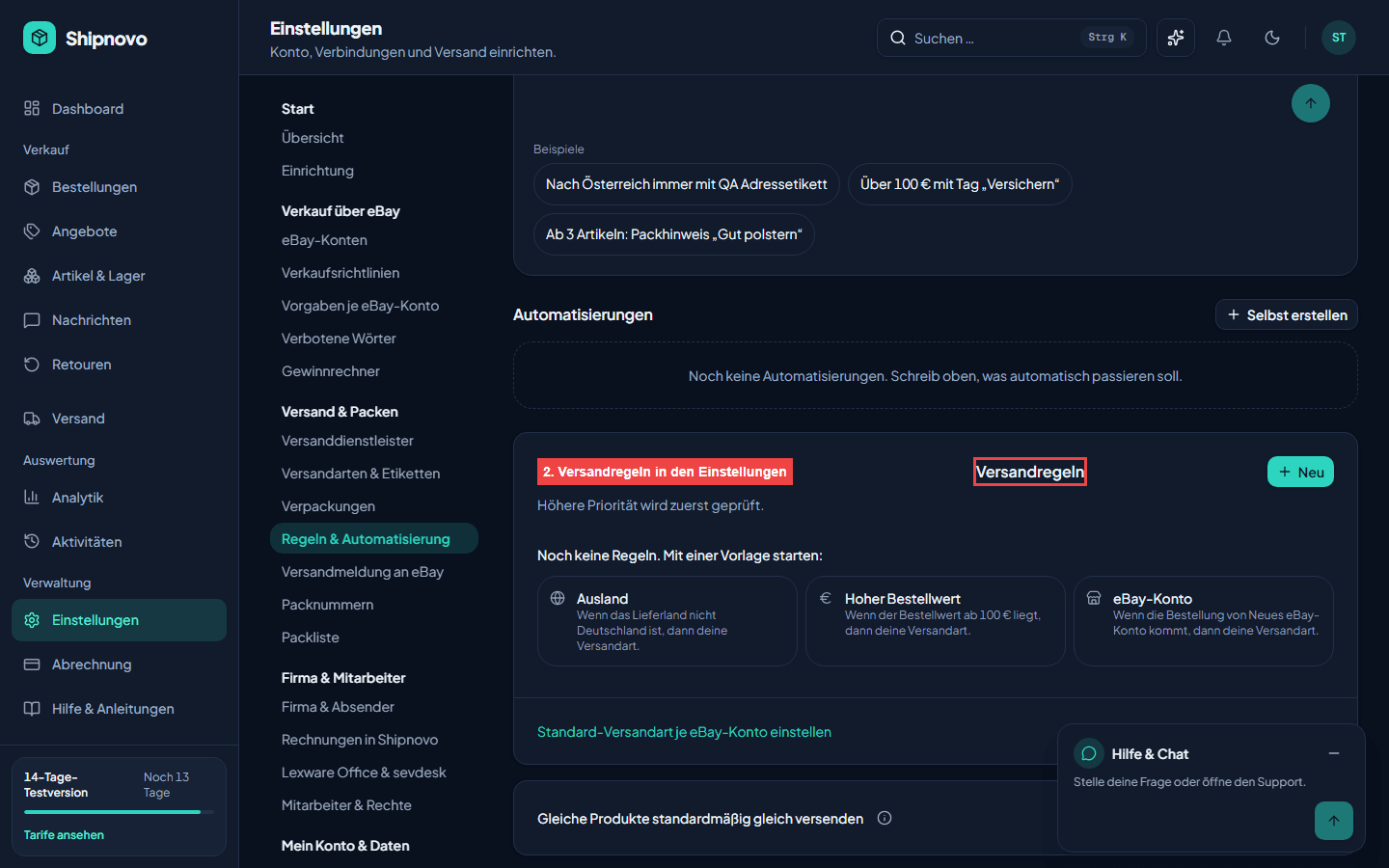
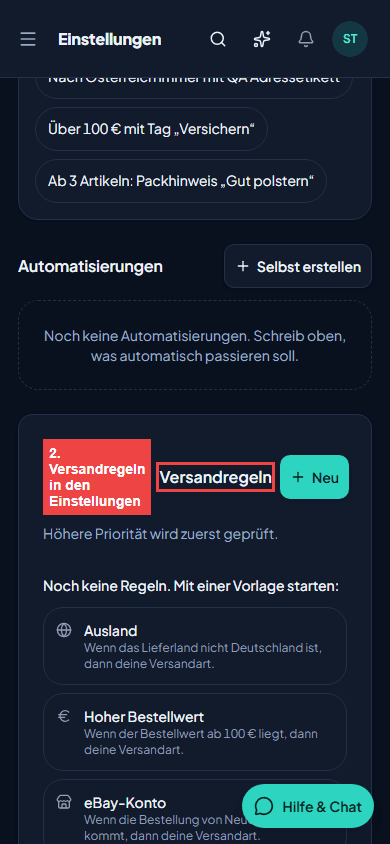
App screenshot with example data - 2
Create a rule
Click New rule. Give it a name that describes what it does, such as Heavy parcels → DHL.
- 3
Set conditions
Add checks with + Condition: weight (g), country (ISO-2), order value (€), quantity, or eBay account. The rule applies only when every condition is met.
- 4
Assign a shipping method
Under Then assign shipping method, choose the method for matching orders. Set up the method first under Shipping methods.
- 5
Set priority and stop behavior
Set the priority. Turn on Stop checking further rules when matched if no later rules should be checked. Use the Active switch to enable the rule.
- 6
Maintain product weights
Weight is the sum of each item's weight multiplied by its quantity, excluding packaging. If an item has no weight, a weight rule will not apply to that order.
Common questions about this guide
No. A rule only assigns a shipping method. Buy labels in the preview with the quantity button, such as “Create 3 labels.”
Yes, in the automation rules on the same page. There is an SKU condition.
Usually, one of the items in the order has no weight. Add it under Products & inventory.
Shipnovo checks rules in priority order. A rule with Stop checking further rules when matched ends the checks for that order.
Explore related topics
Try Shipnovo with eBay
Free for 14 days. No payment details needed.